Custom Instructions for Copilot in Outlook
Anyone who uses generative AI to write knows the problem: the results come back impressively fast, but they sound robotic, overly formal or simply not like you. In business email in Outlook this can be off-putting. Emails with a personal touch build trust. Generic text does not.
Microsoft has recognized this problem and now offers more ways to personalize Microsoft 365 Copilot. With "Custom Instructions" you can teach Copilot to always take your tone, your formatting preferences and your role in the company into account.
Important: To use the features described here, especially the style analysis with Copilot, you need an active Microsoft 365 Copilot license.
In this post I show you how to set this up and how to let the AI analyze your own style with a simple trick.
Why generic prompts are not enough
Without context, Copilot assumes the average. That usually means polite, neutral and a bit long-winded. In a technical or business setting in Switzerland, that is often too much. We prefer precision and efficiency.
If you have to write "Keep it short and don't use filler words" every time, you waste valuable time. This is where persistent Custom Instructions come in. They act as a permanent filter on all your requests.
Setting up Custom Instructions
The custom instructions for email drafts live directly in the Outlook settings and apply to all future drafts:
- Start a new email in the new Outlook (web or desktop).
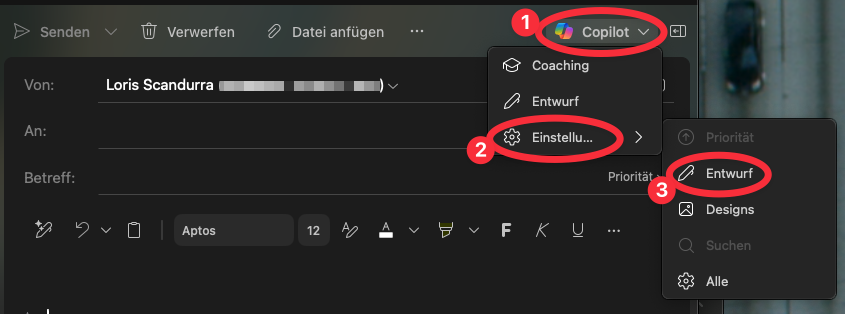
- Select the Copilot icon in the toolbar.
- In the dropdown menu, select "Settings" and then "Draft instructions".
- Turn on the toggle "Use custom instructions when drafting email".
- Enter your instructions (see the pro tip or the examples below) in the text box and select Save.
Pro tip: Let Copilot analyze your style
It is often hard to put your own writing style into words. Instead of guessing, we use Copilot to analyze your sent emails and generate the right instruction from them.
Use Microsoft 365 Copilot with the following prompt (don't forget to switch to Work mode so Copilot can access your emails):
Prompt: "Analyze the emails I sent in the last 30 days. Based on them, describe my writing style, my tone (for example formal vs. informal) and my preferred formatting. Summarize the result in a short paragraph that I can use as a 'Custom Instruction', so that the AI writes texts exactly the way I do from now on."
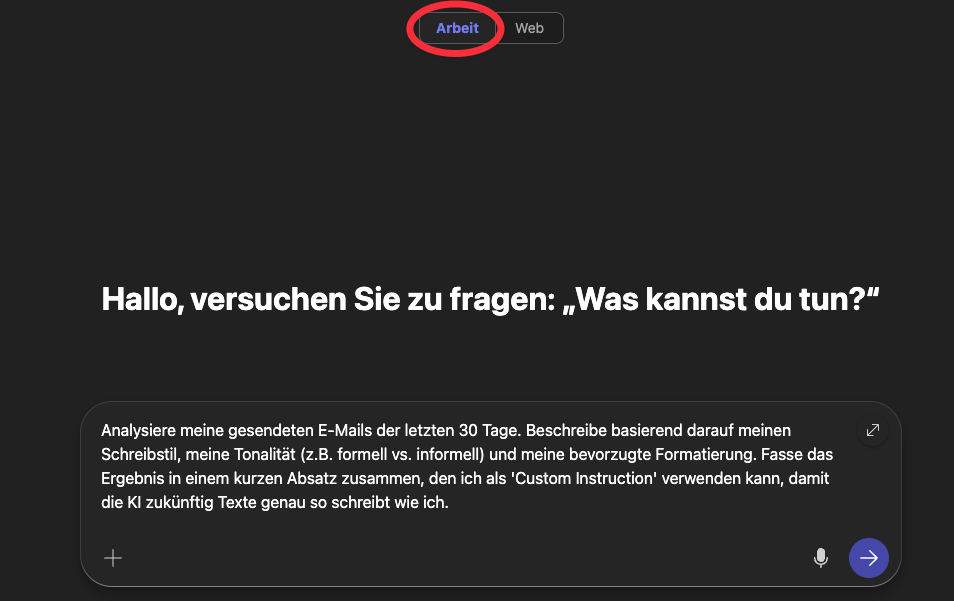
Copy the result, refine it if needed and paste it into your settings. This way the AI really sounds like you.
Best practices for Outlook scenarios
If you don't want to use the analysis prompt above, these manual parameters have proven useful:
1. Tone and language Define clearly whether you communicate more formally or informally.
- Example: "I communicate directly and professionally, but concisely. Avoid excessive polite phrases and unnecessary filler words."
2. Formatting and length Managers and technical leads in particular have little time.
- Example: "Keep email drafts short. Use bullet points for lists instead of running text. Put important deadlines or action items in bold."
3. Role context So Copilot knows from which perspective it is writing.
- Example: "I am a Cloud Architect. When I explain technical topics, use precise technical terms, but explain them briefly for non-technical recipients."
Conclusion: Adapt the AI to you, not the other way around
Microsoft 365 Copilot in Outlook only shows its real strength once the tool understands your context. With well-tuned Custom Instructions you no longer have to keep rewording AI drafts. You get suggestions that are 90% done instead of only 50%.
Take the ten minutes to set it up. It is an investment in your daily productivity.

About the author
Loris Scandurra
As an expert in Azure and AI solutions, I help modern companies transform their business processes with new technology. With years of experience in cloud development and artificial intelligence, I help you get the full value out of digital solutions.
Get in touch