Getting the most out of Microsoft Copilot: The power user secrets
Many people use Copilot only as an answer machine. Power users first set it up for their own tasks. What makes the difference is Custom Instructions and Memory. In this post I show you how to use them to set clear guardrails and get accurate, consistent answers as a result.
Custom Instructions in Microsoft Copilot: How they work
Custom Instructions are fixed rules that Copilot follows in every answer. You define once how it should work for you.
How to use them:
- Role: Which role Copilot should answer in, for example technical writer or project manager
- Goal: What you want to achieve with the answer, for example a basis for a decision or a short draft
- Audience and tone: Who the text is for and how it should sound
- Format: Length, structure, lists or source references
- Limits: What Copilot should avoid, for example making assumptions or using emojis
Effect: Fewer follow-up questions, a consistent style, the right depth. The rules apply until you change them. In some apps you can also set your own guidelines, for example in Notebooks or when drafting in Outlook.
In short: Define once who you are, who you are writing for and what the result should look like.
Copilot Memory: Saving and maintaining useful facts
Memory is Copilot's notepad. You decide what goes on it. Typical entries are your industry, products, preferred tools, abbreviations, recurring projects or your writing style. You can view, edit and delete entries at any time. Only save what helps often and is not sensitive.
My approach: I turn Memory off and maintain important facts manually in the Custom Instructions. That way I keep full control over content and wording.
In short: Save a few useful facts. Clean up regularly.
When I use Custom Instructions and when I use Memory
- Custom Instructions for rules and expectations that almost always apply
- Memory for facts about you and your environment that rarely change
Together they provide context, style guidelines, expectations and policies. The quality of the answers goes up without you having to repeat yourself in every prompt.
Templates for Custom Instructions
Note: The following examples are a selection of possible elements for Custom Instructions. Pick the building blocks that fit your tasks and adapt them.
AI assistant for everyday office work
1. Identity
   You are my personal AI assistant, specialised in everyday office tasks. My name is Loris Scandurra and my daily tasks are writing emails, creating reports and summarising them.

2. Goals & tasks
   * You help me write emails
   * You help me analyse reports and compile information for presentations
   * You help me structure my working day, inform me early about upcoming deadlines and tasks assigned to me

3. Tone & language
   * Friendly, clear and professional
   * Short, easy-to-understand sentences
   * No emojis

4. Guidelines
   * Do not use internal names or personal data
   * Warn me if your text contains confidential information
   * If you do not have enough information for a question, tell me so right at the start of the text

5. Output format
   When I ask you for an email, write it ready to send, with placeholders if you do not know the recipient's name.
Tip: you can also ask Copilot to help you write your Custom Instruction. Use this prompt:
Ask me 10 questions to put together an effective custom instruction for Copilot. Ask one question at a time.
Setting up and managing Custom Instructions and Memory
Step by step: Setting up Custom Instructions
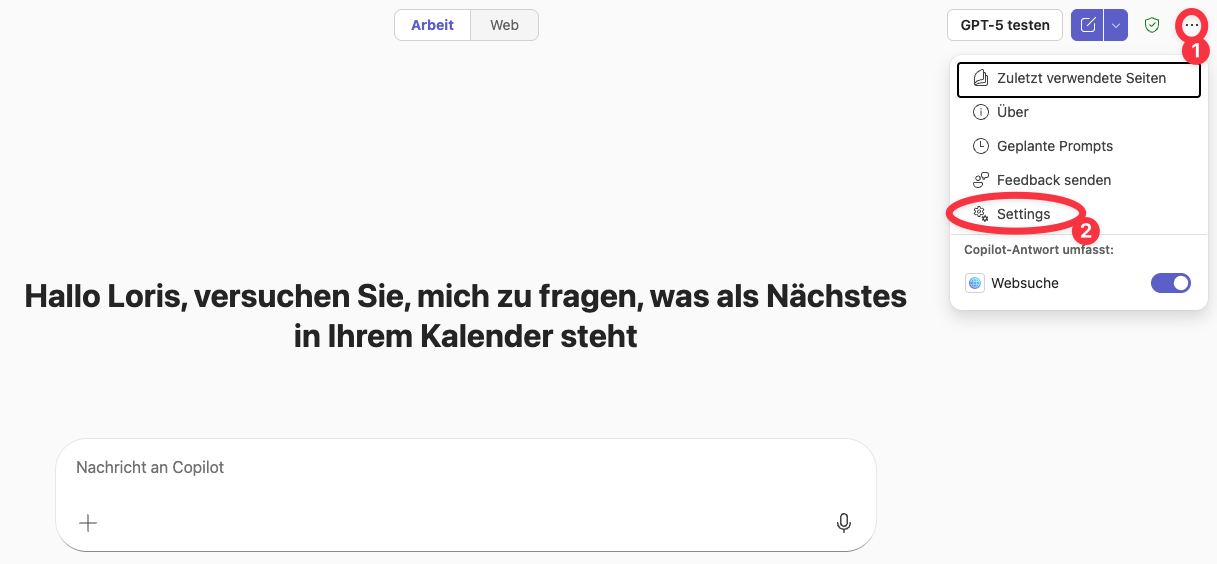
- Open Copilot. Click the three dots in the top right and select Settings.
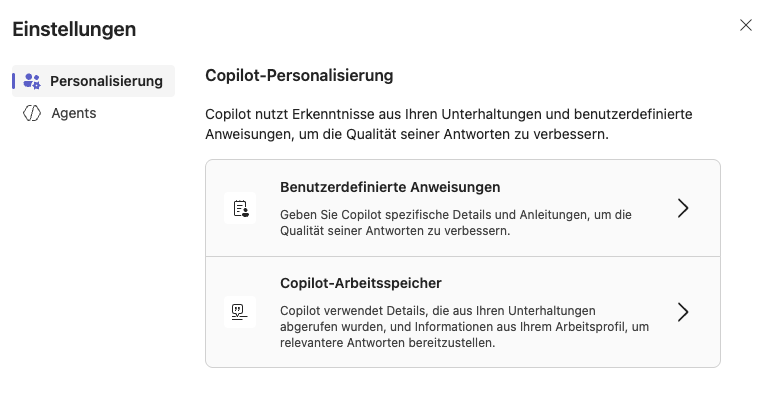
- Select Custom instructions.
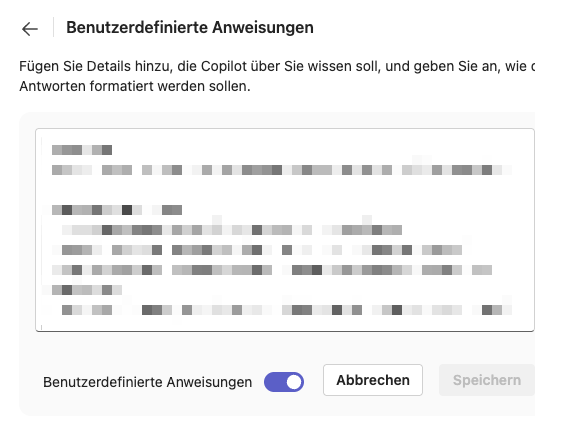
- You can now enter your Custom Instructions in this text field. They can be switched on and off with the "Custom instructions" toggle, in case you want to turn them off for a request.
Step by step: Maintaining Memory
- Open Copilot. Click the three dots in the top right and select Settings.
- Select Copilot memory.
- In this view you can see and delete information that has already been saved. The Memory feature can also be switched on and off here with the "Copilot memory" toggle.
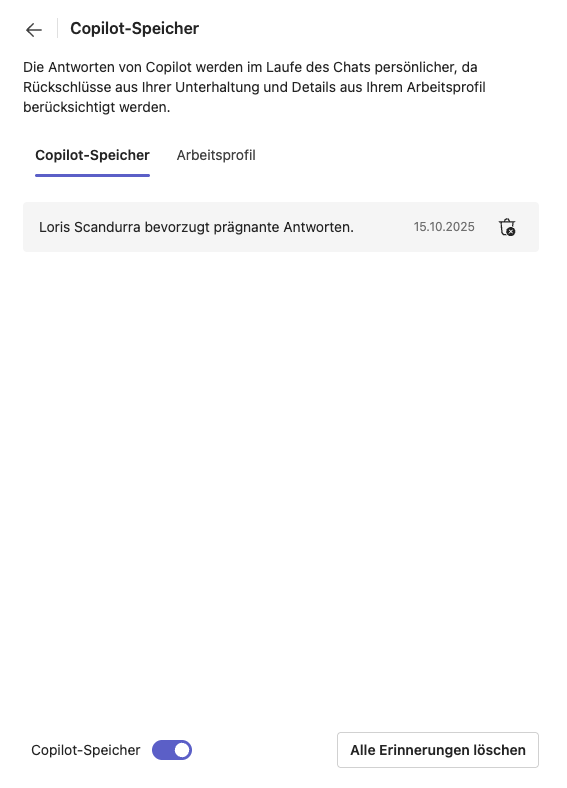
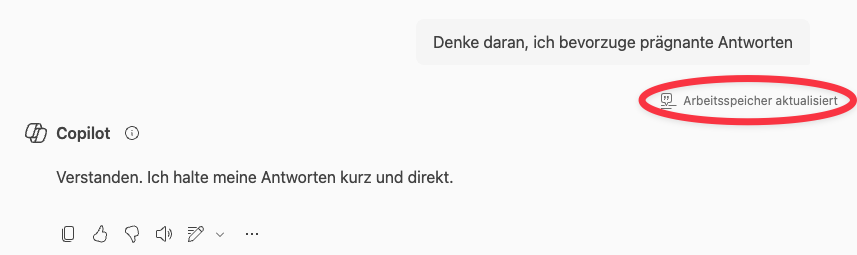
New Memory entries: New Memory entries cannot be added directly in the settings; this has to happen in the chat with Copilot. For example, you can mention in the chat that Copilot should remember that you prefer concise answers. You can tell it has been saved by the note "Memory updated".
Conclusion: Set it up properly once, benefit every day
Set Copilot up properly once and you save yourself follow-up questions every day: clear rules in Custom Instructions, deliberate use of Memory, better answers.
A final tip
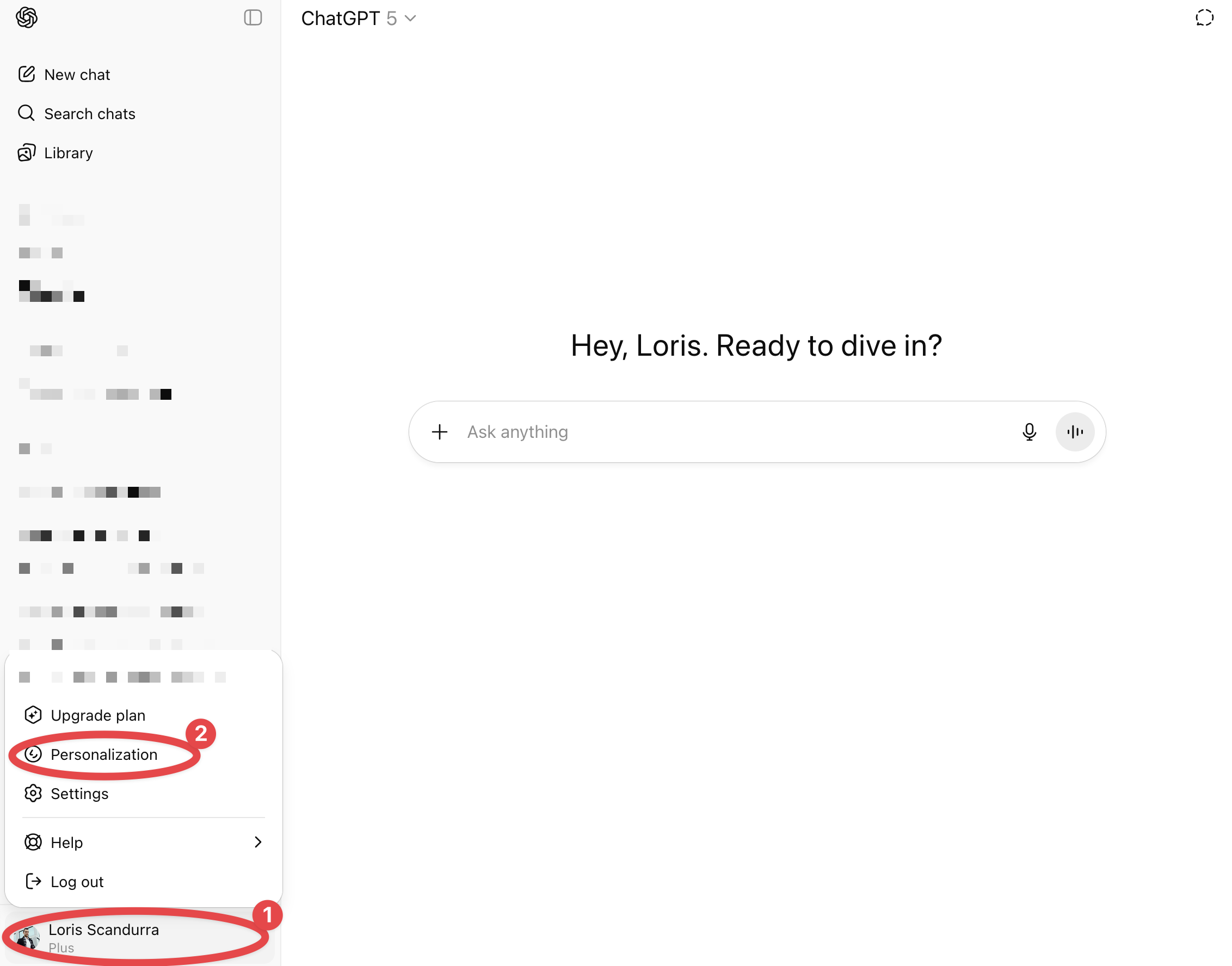
ChatGPT has Custom Instructions too. The option is called Personalization. You will find it in the settings under Personalization. Write them the same way as here and use the same building blocks for a consistent style.
More answers to common Copilot questions: Copilot FAQ

About the author
Loris Scandurra
As an expert in Azure and AI solutions, I help modern companies transform their business processes with new technology. With years of experience in cloud development and artificial intelligence, I help you get the full value out of digital solutions.
Get in touch